
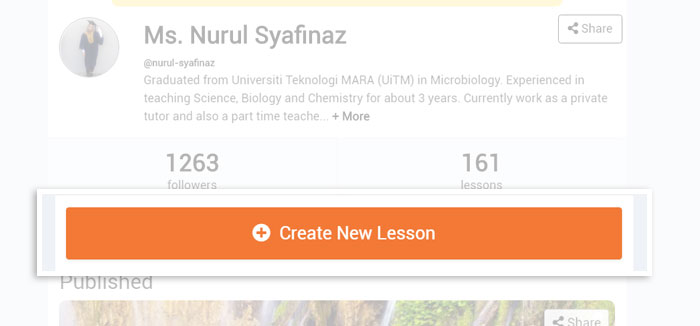
You may start creating your attractive lesson after register your account or login. Firstly, click the Create New Lesson button at the homepage.
Next, you have to select subject, language, education year, chapter and optional for subchapter (can skip). All the selected items will be available in lesson cover.
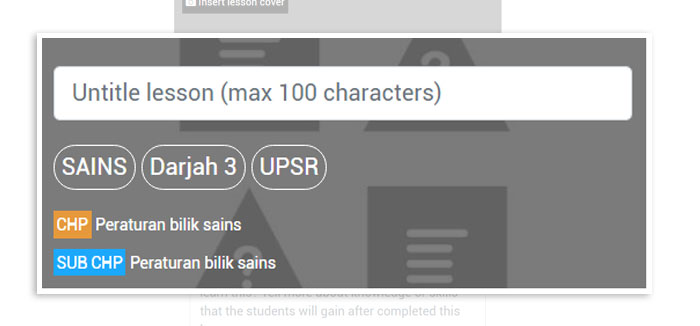
Lesson cover
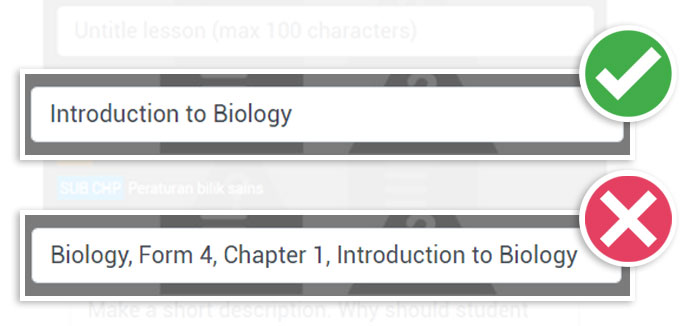
At the lesson cover, you must state the title directly without repeating the title information.
Example:
Lesson cover (image)
Upload image with a picture that is clear, attractive, colorful, no words or watermark on it.
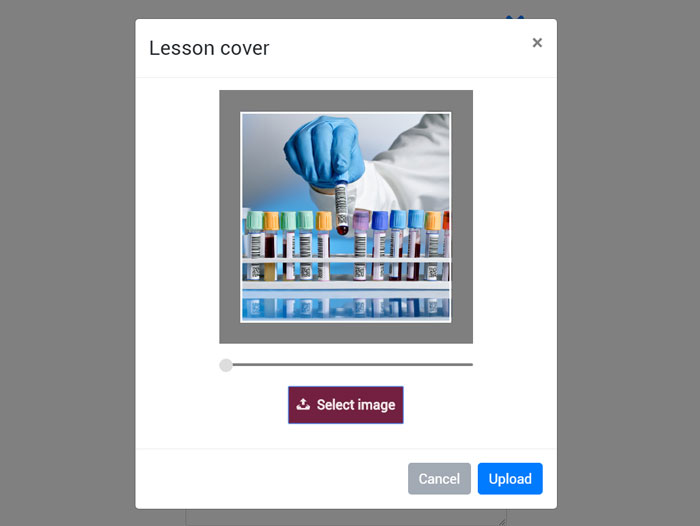
TIPS :
If you are creating more lesson, make sure the lesson cover are differ from each other. This is to attract users to study your lesson. Same lesson cover might confuse the users and also can make users boring.
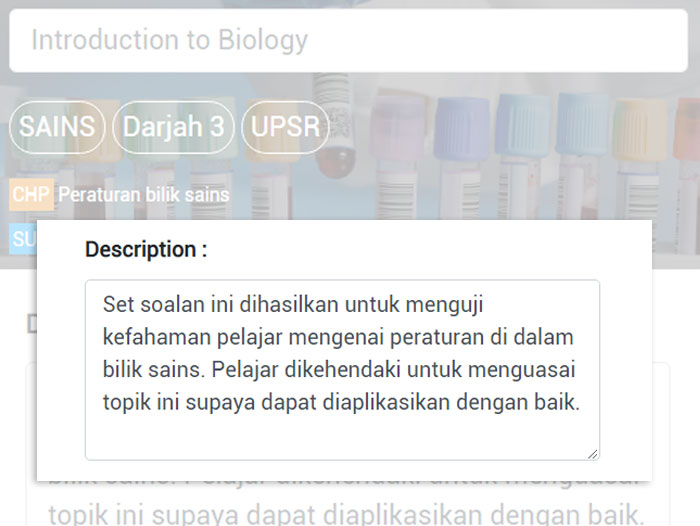
Description
Explain more what will students get when study your lesson. Highlight your lesson specialty and objectives. Explain in essay form.
Example:
Your lesson must be at least 5 pages to publish. Recommended pages are 12 pages which include 3 pages of notes and 9 pages of questions. If exceed, please start a new lesson with a different title.
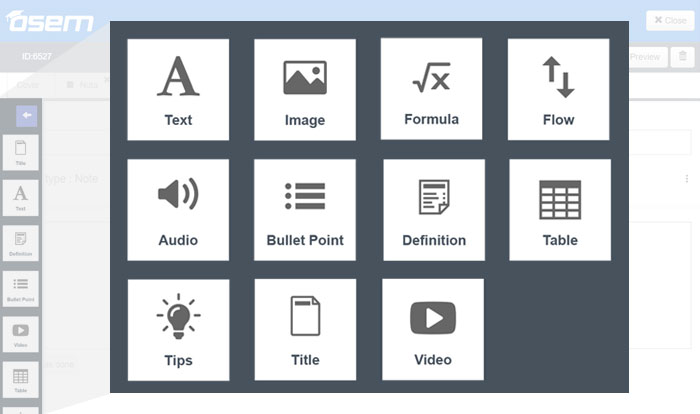
The best way to start your lesson is with adding notes. To add the note, please click and choose your format. This steps also applicable for adding a question.
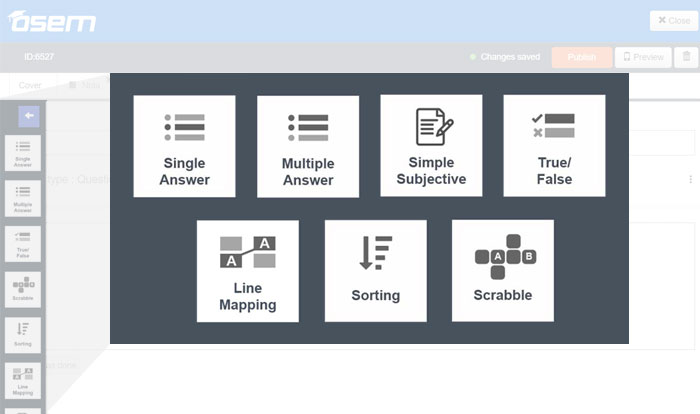
There are 11 components available for note and 7 components for questions. You may add video, tips, image and formula components to make your notes more interesting and understand by students.
Note Components
Question Components