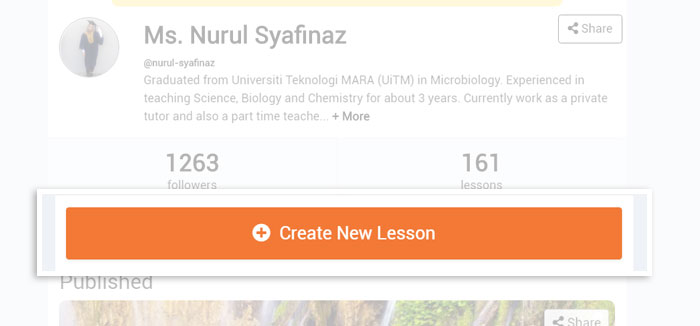
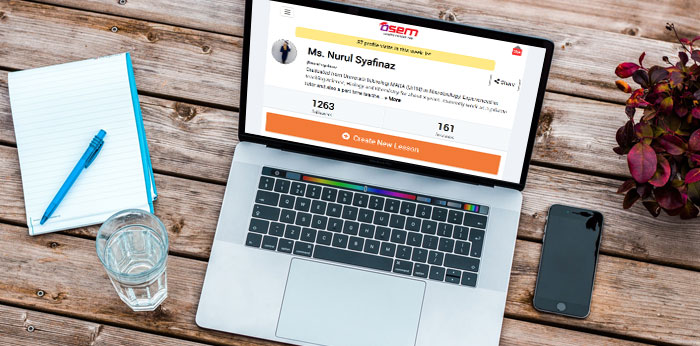
You may start creating your attractive lesson after register your account or login. Firstly, click the Create New Lesson button at the homepage.
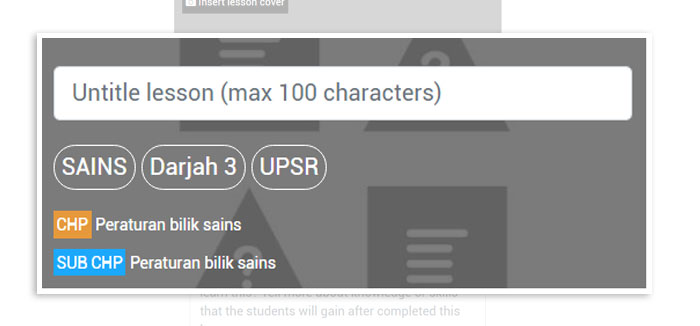
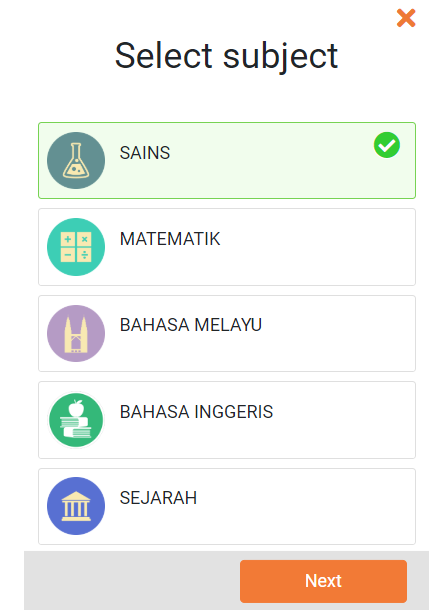
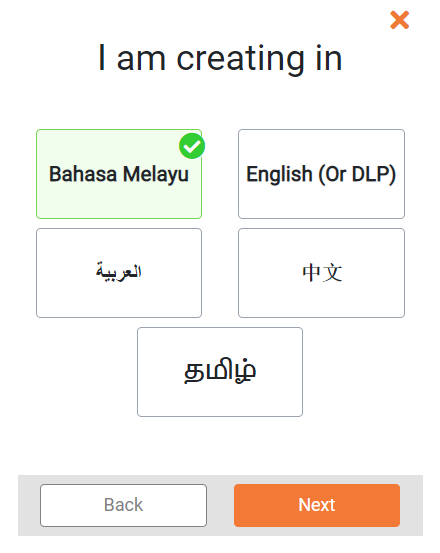
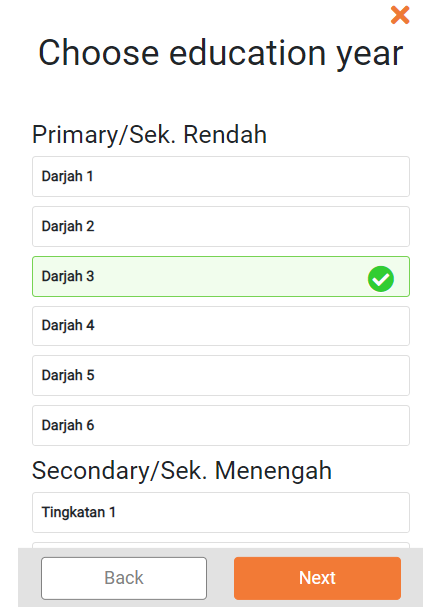
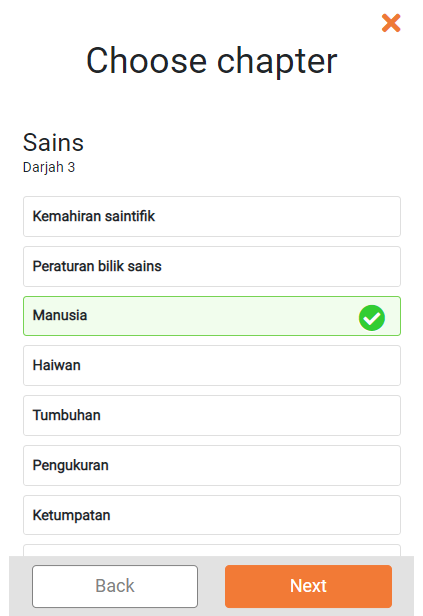
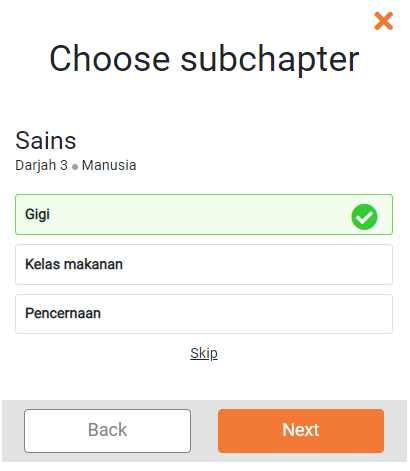
Next, you have to select subject, language, education year, chapter and optional for subchapter (can skip). All the selected items will be available in lesson cover.
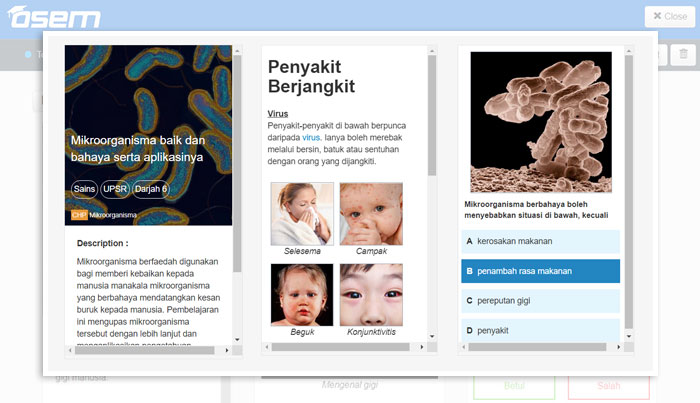
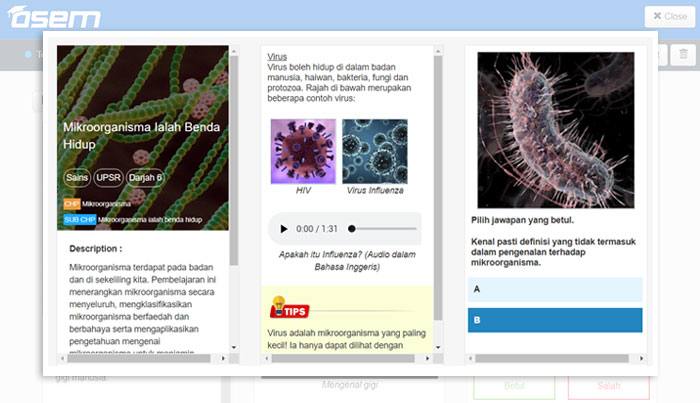
Lesson cover
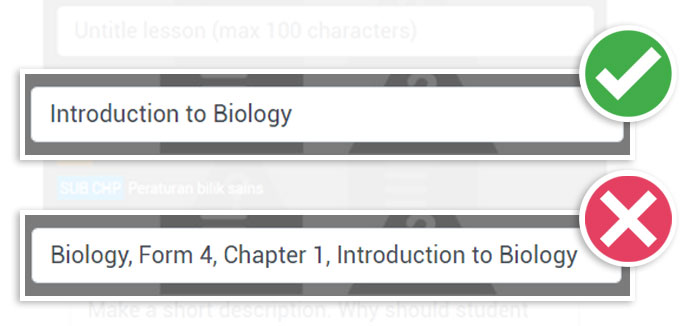
At the lesson cover, you must state the title directly without repeating the title information.
Example:
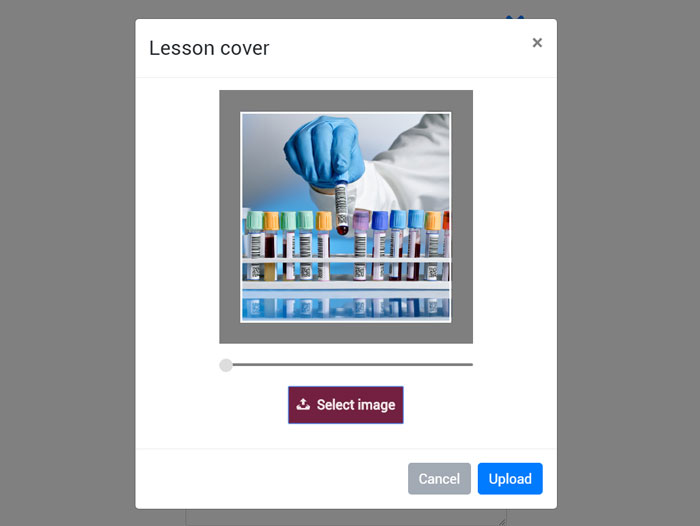
Lesson cover (image)
Upload image with a picture that is clear, attractive, colorful, no words or watermark on it.
TIPS :
If you are creating more lesson, make sure the lesson cover are differ from each other. This is to attract users to study your lesson. Same lesson cover might confuse the users and also can make users boring.
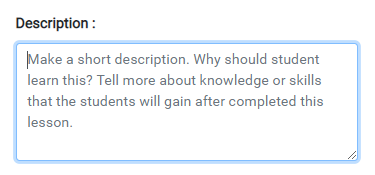
Description
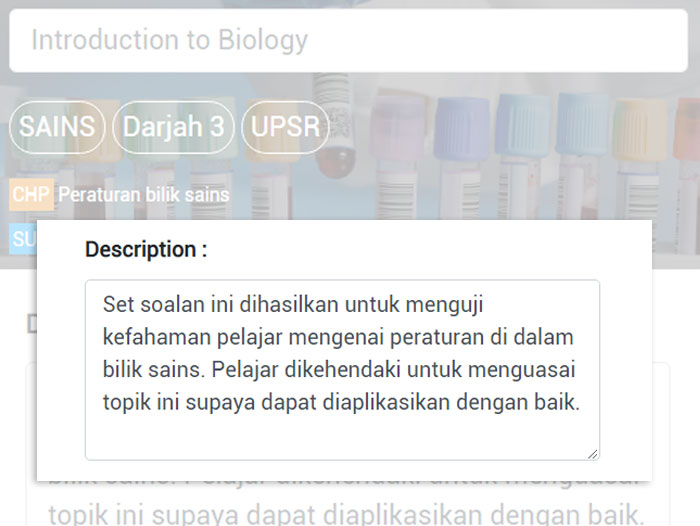
Explain more what will students get when study your lesson. Highlight your lesson specialty and objectives. Explain in essay form.
Example:
Your lesson must be at least 5 pages to publish. Recommended pages are 12 pages which include 3 pages of notes and 9 pages of questions. If exceed, please start a new lesson with a different title.
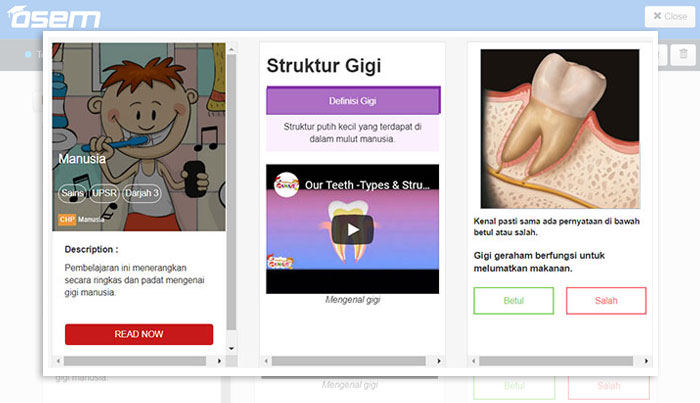
The best way to start your lesson is with adding notes. To add the note, please click and choose your format. This steps also applicable for adding a question.
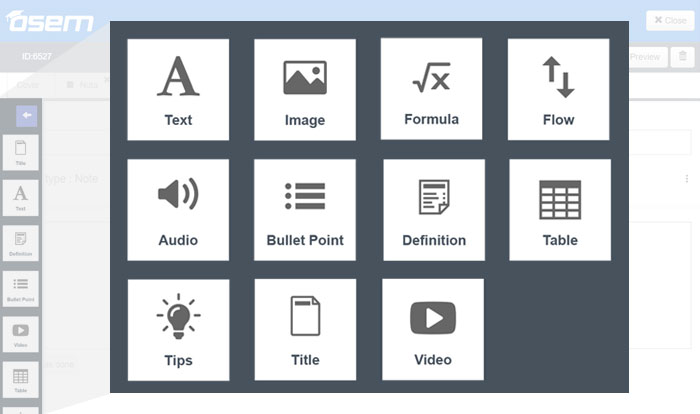
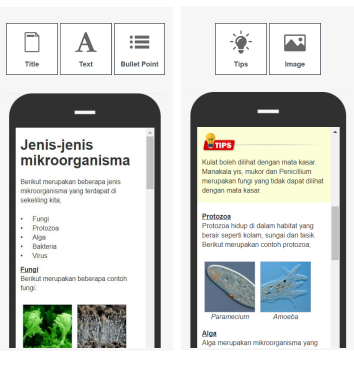
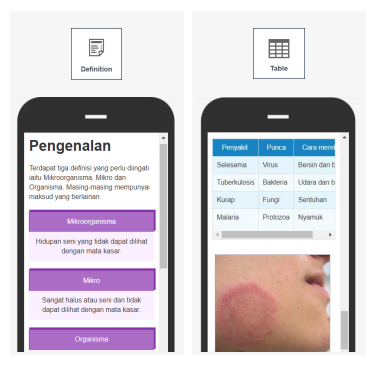
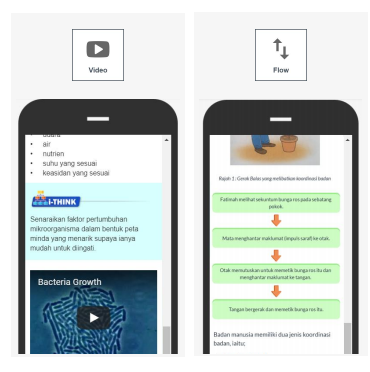
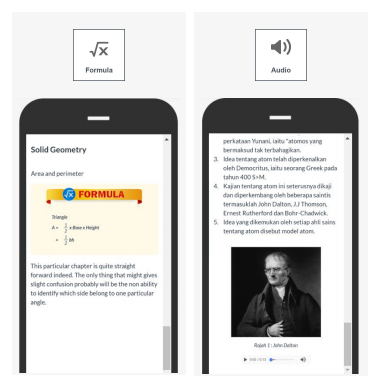
There are 11 components available for note and 7 components for questions. You may add video, tips, image and formula components to make your notes more interesting and understand by students.
Note Components
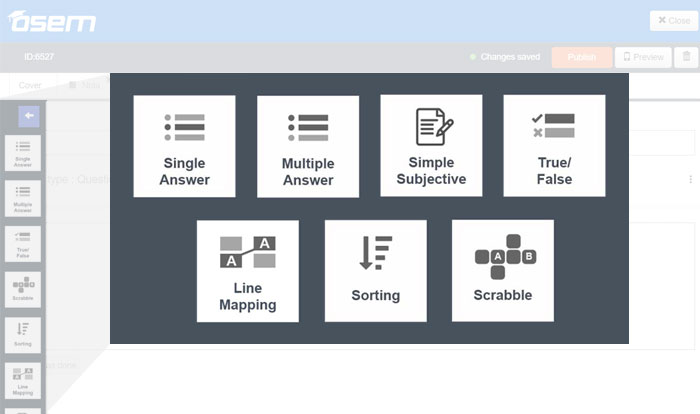
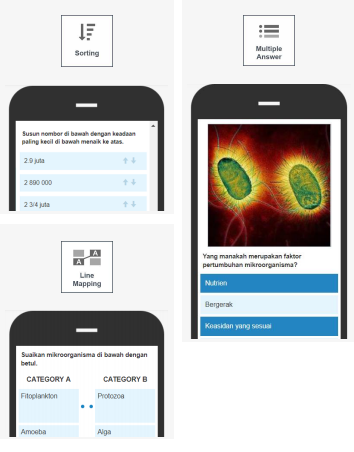
Question Components
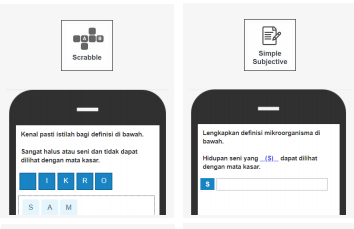
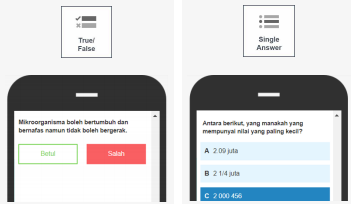
For questions, component represent the format of question such as subjective, true and false, single answer (objective), multiple answer, scrabble, line mapping and sorting.
After complete all, you are advise to carefully read all pages, try to find grammar or spelling mistakes before hit publish to avoid being rejected by Osem Content Quality Control Team.
Is this helpful?
Yes
No
Send your feedback for "Basic steps to create lesson"
Available subjects
Science
Mathematics
Bahasa Melayu
Bahasa Inggeris
Sejarah
Matematik Tambahan
Pendidikan Syariah Islamiah
Motivasi
Sains Komputer
Bahasa Arab
Perniagaan
Ekonomi
Prinsip Perakaunan
Sains Tambahan
Fizik
Kimia
Biologi
Geografi
Teknologi Maklumat dan Komunikasi
Reka Bentuk dan Teknologi
Pendidikan islam
Pendidikan moral
Ulum Syariah (KAFA/UPKK)
Sirah(KAFA/UPKK)
Lughatul Quran (KAFA/UPKK)
Adab (KAFA/UPKK)
Jawi (KAFA/UPKK)
Is this helpful?
Yes
No
Send your feedback for "Available subjects"
Lesson Cover
Lesson Title
State the title directly without repeating the title information. Example of title: Introduction to Biology Example of wrong title: Biology, Form 4, Chapter 1, Introduction to Biology
Lesson Cover (image)
Upload lesson cover (image) with a picture that is clear, attractive, colorful, no words or watermark on it.
Tips: If you are creating more lesson, make sure the lesson cover are differ from each other. This is to attract users to study your lesson. Same lesson cover might confuse the users and also can make users boring.
Description
Explain more what will students get when study your lesson. Highlight your lesson specialty and objectives. Explain in essay form. Example of description: Through this lesson, students will be able … Example of wrong description: This is an amazing lesson. This is a short note. Happy study!
Is this helpful?
Yes
No
Send your feedback for "Lesson Cover"
How to create notes?
Start a new page by click on Add Page
Choose note’s symbol
Add component based on your desire
Is this helpful?
Yes
No
Send your feedback for "How to create notes?"
Note’s components.
There are 11 note’s components provided.
Is this helpful?
Yes
No
Send your feedback for "Note’s components."
How to create questions?
Start a new page by click on Add Page
Choose question’s symbol
Add component based on your desire
Is this helpful?
Yes
No
Send your feedback for "How to create questions?"
Question’s component
There are 7 question’s component provided.
Is this helpful?
Yes
No
Send your feedback for "Question’s component"
Flow to Publish
Criteria to publish:
Minimum 3 pages Your lesson must be at least 3 pages to publish.
Minimum height 80% This will be detected automatically by the system. Each page of lesson must not too short.
Has been reviewed Please click on review button and review your lesson until the last page. If there is no mistake, push done button.
Now, you can publish your lesson!
Status of lesson:
These are the list of status that you might be seen.
Status
Eplanation
Draft
The lesson saved only for your view.
Published, In Review
The lesson is in review by editor.
The lesson has been published to your profile page.
Published
The lesson has been entitled to be displayed in app main page.
To Edit
The lesson need an action.
Rejected
The lesson has been disable from being published or edit.
Is this helpful?
Yes
No
Send your feedback for "Flow to Publish"
Editing picture
Is this helpful?
Yes
No
Send your feedback for "Editing picture"
Lesson Metadata
Select subject
Choose your lesson subject. This must be specific. You are unable to choose more than one subject for each lesson.
Lesson language
Select the lesson language that you want to create. Do not mix the language in one lesson. Please select English if you want to fulfill DLP (Dual Language Program)
Choose education year
You might choose more than one education year. Example; if you are creating past year paper for PT3, you need to select Form 1, Form 2 and Form 3.
Choose chapter
This step will be skipped if you choose multiple edu year. You are unable to choose more than one chapter because the lesson will be arranged accordingly by chapter in the app.
Choose subchapter
This step will also be skipped if you choose multiple edu year. You are able to choose more than one subchapters. This is because some of the subchapters might be too short.
Is this helpful?
Yes
No
Send your feedback for "Lesson Metadata"
Publishing lesson best practices
Minimum 5 pages
Your lesson must be at least 5 pages to publish. Recommended pages are 12 pages which include 3 pages of notes and 9 pages of questions.
Minimum height 80%
This will be detected automatically by the system. Each page of lesson must not too short.
Notes and questions arrangement
Arrange notes before question continuously. Make sure the questions are not depending on notes as the questions will be randomly used by students for Battle in Osem App.
Readable and useful content
Use simple word to help student understand faster. Add some tips like exam favourite items, formula to remember, focus more here.
Attractive lesson cover image
Images used must be no wording layered on it, no watermark, colored, clear and attractive. The image for lesson also must differ from another and related to the title.
Interactive lesson
Adding suitable youtube video in your lesson for better understanding. Use colored and attractive images to help student easy to memorize your lesson.
Review your lesson
Carefully read all pages, try to find grammar or spelling mistakes before hit publish to avoid being rejected by Osem Content Quality Control Team.
Is this helpful?
Yes
No
Send your feedback for "Publishing lesson best practices"